Showing posts with label screencap. Show all posts

Thursday, 13 April 2023

Unpublish Unity WebGL Game

Problem:

On Unity Play (play.unity.com) I've published a game as part of a tutorial and now I want to remove it.

Warning:

Following these instructions will remove your game from Unity Play, including all saved stats, challenge submissions, etc. It doesn't look like this can be undone, so continue at your own risk.

One solution:

The following shows one way to delete your game from Unity Play. Please note that this likely cannot be undone. You'll lose all achievements, data, etc., associated with the published game, even if you republish (confirmed as of April 2023).

  1. If not already logged in, login to your Unity account
  2. Navigate to the page displaying all of your games. As of April 2023 this is at https://play.unity.com/discover/mygames
  3. Open the game you'd like to edit or delete/unpublish, then look for the 3 dots "..." indicating a menu
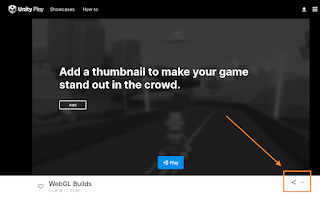
  4. Select "delete" or "edit", depending on if you'd like to delete or edit.
  5. Read the confirmation carefully as there's no turning back. If you agree to deleting your game and losing any data related to it, then go for it.
  6. Congratulations, you've deleted your game!

Notes:

The above instructions were verified to work in April 2023. Your mileage may vary as the Unity team is constantly busy upgrading your favorite game engine and services.

References:

Friday, 12 January 2018

How to take Touch Bar screenshots on Mac

Problem:

How do I take a screenshot of the Touch Bar on a Mac?

Solution:

To take a Touch Bar screenshot and...

  • ...save as a file on the desktop: Shift-Command-6
  • ...copy to clipboard: Control-Shift-Command-6

Example Screenshot:

Notes:

The shortcuts in the solution above are defaults. They can be configured by going to "System Preferences" -> Keyboard -> Shortcuts -> "Screen Shots", and setting new shortcuts.

The how-to was verified to work in macOS 10.12.6 on a MacBook Pro with a Touch Bar. Your mileage may vary with other OS versions.

References:

Wednesday, 4 January 2017

Android screenshot to computer with adb

Problem:

How do I use adb to get a screenshot from an Android device or emulator?

I'd like to target a specific device when more than one are connected to adb.

I already know how to open adb shell and put a device in debugging mode.

Solution:

One method is the following:

  1. Get list of devices:
    adb devices -l
    

    You should get a list that looks like:

  2. Once you have a device identifier, such as "emulator-5554", you can use similar commands as below. (Replace "emulator-5554" with your device identifier).
    adb -s emulator-5554 shell screencap -p /sdcard/screencap.png
    adb -s emulator-5554 pull /sdcard/screencap.png
    
  3. (Optional) remove the last screencap from your device (in this example, named "emulator-5554"):
    adb -s emulator-5554 shell rm /sdcard/screencap.png
    

Other notes:

If you've only got one device accessible to adb, you can simply do the following:

adb shell screencap -p /sdcard/screencap.png
adb pull /sdcard/screencap.png
adb shell rm /sdcard/screencap.png

If you'd like to see a one-liner to do the above, check out the neat example here: http://blog.shvetsov.com/2013/02/grab-android-screenshot-to-computer-via.html

References: